Apple Photos on Mac
Free up space used by Apple Photos on your Mac
Before you delete a single photo, find out whether you need smaller local copies, a different library location, or a focused review of large files.
Last reviewed: August 3, 2026
First, check where the space is going
Open System Settings → General → Storage and check whether Photos is one of the main storage categories on your Mac. A large Photos library does not always mean that every original is stored locally.
In Photos, open Photos → Settings → iCloud. “Download Originals to this Mac” keeps full-resolution copies locally. “Optimize Mac Storage” can keep smaller versions on your Mac when space is limited while the originals stay in iCloud.
Check storage on your Mac and review your Photos storage settings.
Choose the right fix first
Once you know what is stored locally, choose the option that matches the problem you are trying to solve.
Keep every photo but use less local space
If you use iCloud Photos, Optimize Mac Storage can keep full-resolution originals in iCloud and smaller versions on your Mac.
Move the library off your Mac
You can move the Photos library to a compatible external storage device. Follow Apple’s formatting and preparation requirements before moving anything.
Remove items you no longer want
Start with large photos and videos, but review each item before you mark it for deletion.
Review large photos and videos before you delete them
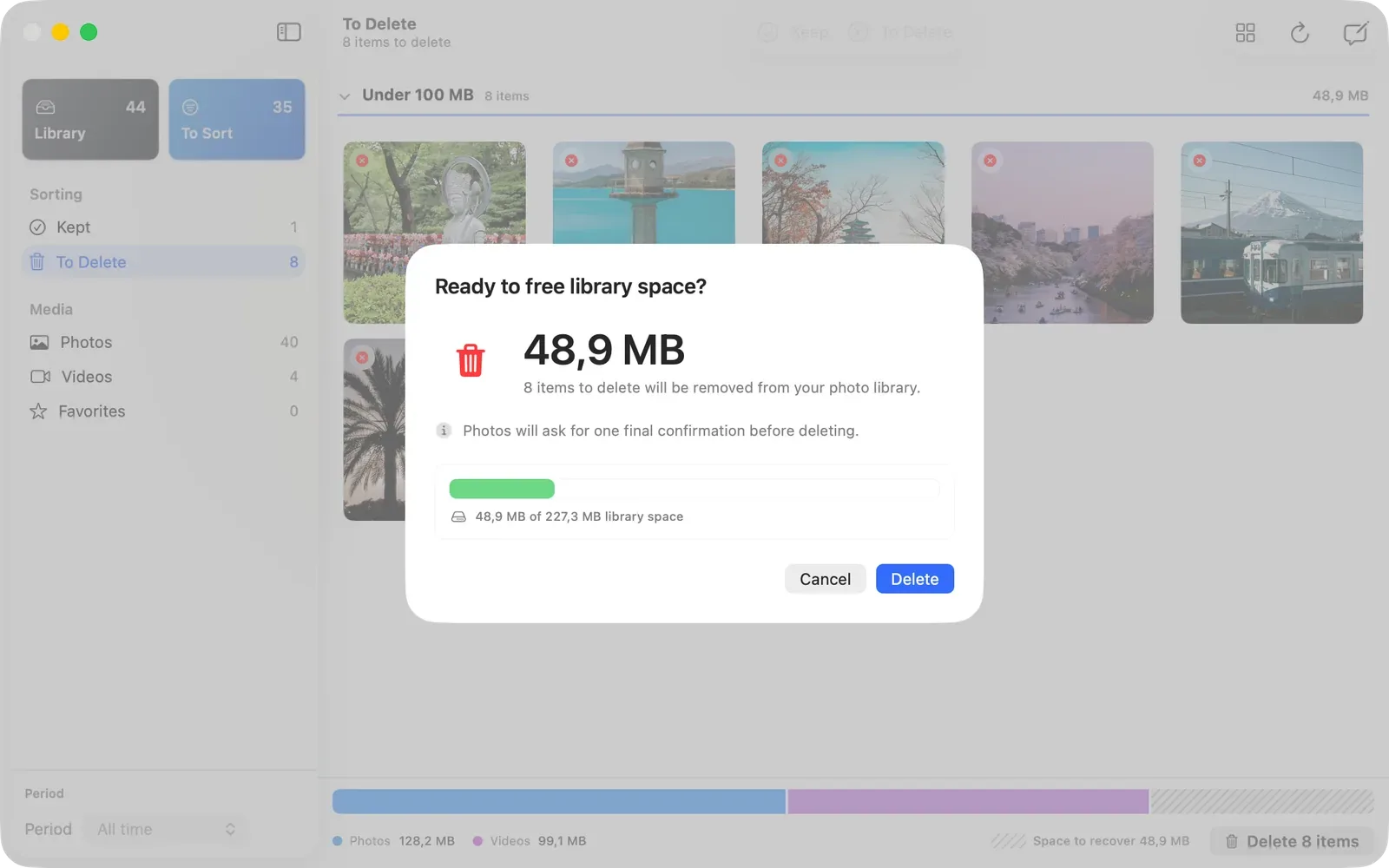
LightRoll turns your Apple Photos library into a finite review queue. Sort by size, keep what matters, mark what can go, and inspect the full batch before Photos deletes anything.
Need the exact workflow? Learn how to find the largest photos and videos in your library.
- Scan the library locally. Your photos, videos, filenames, and library contents stay on your Mac.
- Start with the largest files. Sort by size when large videos or high-resolution photos are the immediate problem.
- Decide, then confirm. Keep items or mark them for deletion, then inspect the complete batch before Photos removes anything.
Try LightRoll for free, then unlock unlimited reviews with a one-time purchase. No subscription or LightRoll account required. See pricing details. Your photo library stays on your Mac.
You stay in control
- LightRoll never chooses photos for deletion.
- Your library stays in Apple Photos.
- File size helps you prioritize; you decide what matters.
- Your photos and videos stay on your Mac.
With iCloud Photos enabled, deleting an item in Photos removes it from your other devices using iCloud Photos. Apple keeps deleted items in Recently Deleted for 30 days unless you permanently delete them sooner. Read Apple’s deletion and recovery guidance before confirming a batch.
Common questions
Will deleting photos from my Mac delete them from iCloud?
Yes, if iCloud Photos is enabled. Deleting an item in Photos on your Mac also removes it from your other devices using iCloud Photos. It remains in Recently Deleted for 30 days unless you permanently delete it sooner.
Why does Photos still use space after I delete items?
Deleted items stay in Recently Deleted for 30 days unless you remove them permanently sooner. The space you recover also depends on whether your Mac stored full-resolution originals or optimized copies.
Should I optimize storage or delete photos?
Optimize storage when you want to keep your library but reduce local full-resolution copies. Review and delete only when you have decided that specific items no longer belong in the library.
Ready to review what is taking up space?
Start with the largest files and make one clear decision at a time. Your photo library stays on your Mac, and nothing is deleted until you confirm.
Try LightRoll for freeTry LightRoll for free, then unlock unlimited reviews with a one-time purchase. No subscription or LightRoll account required. See pricing details.