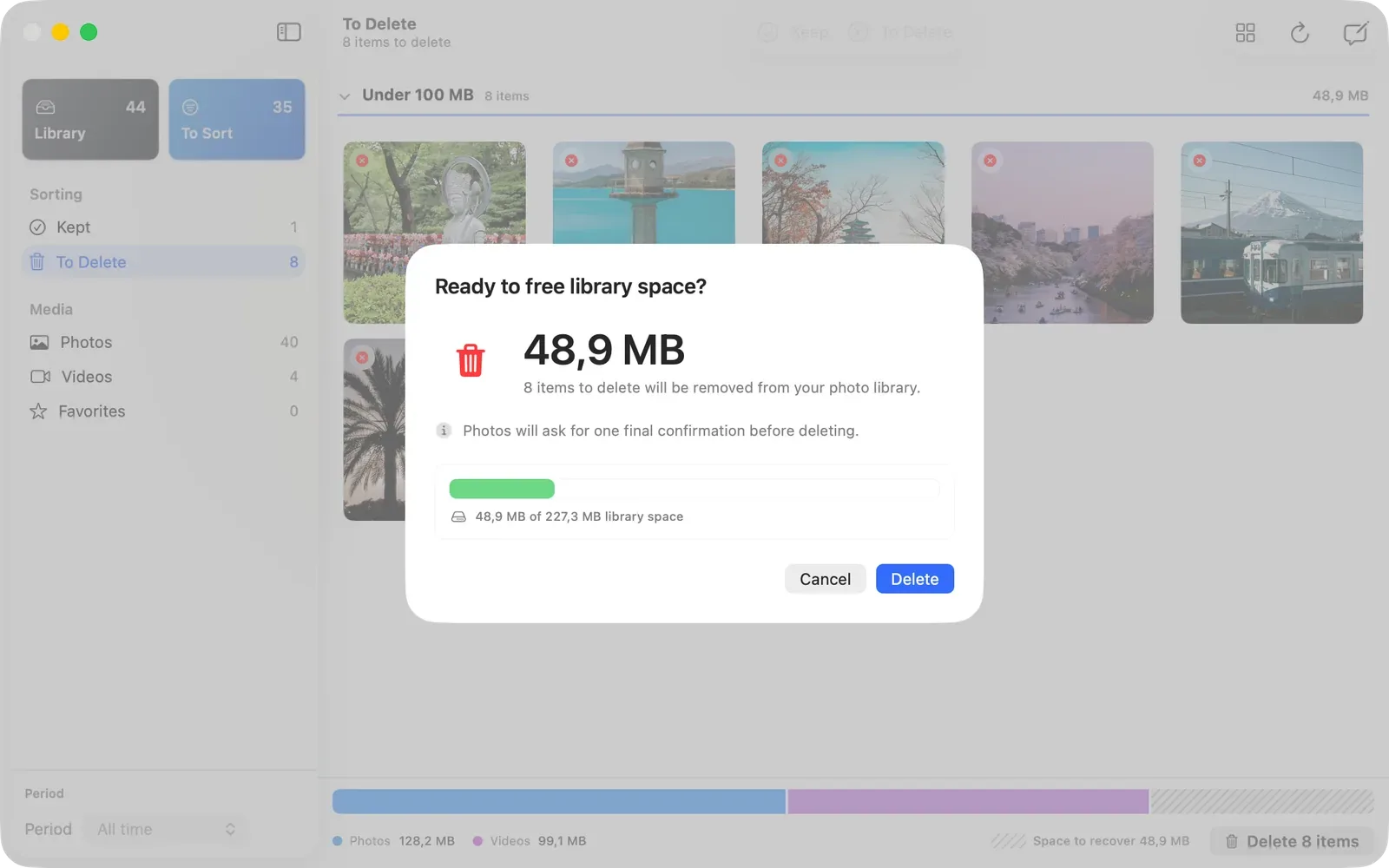
Apple Photos can show the file size of a selected photo or video on your Mac. Its documented library filters do not rank the entire library by size. Use Command-I to inspect individual files. For a whole-library view, use a size-aware review tool that can put the largest items first.
That distinction matters. A single long video can have more storage impact than hundreds of ordinary photos, but scrolling through a library by date will not reveal it.
Check the size of one photo or video in Apple Photos
Apple Photos already exposes useful metadata for individual items:
- Open Photos on your Mac.
- Select a photo or video.
- Press Command-I, or click the Info button in the toolbar.
- Look for the file size in the information window.
Apple says the Info window can include the capture device, date, camera metadata, and file size. This is the safest native method when you only need to check a few likely candidates.
See Apple’s guide to photo and video information.
Start with videos when you are checking manually
Open Media Types → Videos in the Photos sidebar. You can then inspect longer clips with Command-I. If your library contains screen recordings, high-frame-rate video, or long 4K clips, check those first. Duration alone does not tell you the exact file size.
Photos also lets you filter a library or collection to show photos, videos, screenshots, favorites, edited items, or keywords. These filters help narrow the search, but Apple’s current documented filter list does not include file size.
Review Apple’s documented library filters.
The practical limit: Apple Photos is good at telling you the size of a selected item. It is not designed to present your entire library as a largest-first review queue.
Put the largest items first with LightRoll
LightRoll is a native Mac companion for Apple Photos. It reads photo and video sizes locally, then lets you sort the library by size with the largest items first.
The workflow is deliberately simple:
- Scan your Photos library. LightRoll builds a local index without uploading your library.
- Sort by size, largest first. Photos and videos appear in size order instead of date order.
- Review one item at a time. Keep it or mark it for deletion; LightRoll does not decide for you.
- Inspect the complete batch. Nothing is deleted until you confirm, and Photos presents its own final authorization.
This turns “find a few large files” into a finite review. You can stop and resume without losing the decisions you already made.
Library size is not always the same as space on your Mac
If you use iCloud Photos with Optimize Mac Storage, a full-resolution original may be in iCloud while a smaller optimized version is currently stored on your Mac. LightRoll prioritizes the full Photos library size when it is available, with an on-Mac fallback when it is not.
That makes size useful for ranking storage-heavy memories, but it does not guarantee that deleting a 2 GB library item will immediately add exactly 2 GB to your Mac’s free-space counter.
Before deleting anything, check System Settings → General → Storage and review your setting under Photos → Settings → iCloud. If the goal is only to reduce local storage while keeping every photo, Optimize Mac Storage may be the better answer.
Compare the safe ways to free up space used by Apple Photos.
Largest does not mean least valuable
Size is a useful priority, not a deletion rule. Large files often include the exact memories people care about most: long family videos, high-resolution originals, Live Photos, or carefully edited images.
Use a largest-first list to decide where to spend attention. Then judge each item by its content:
- Play a video before marking it.
- Check whether a photo is a favorite.
- Confirm that an export or backup is usable when the item is irreplaceable.
- Keep the item when you are unsure. You can review it again later.
LightRoll never treats file size as permission to delete.
Know what happens after you confirm deletion
Deleting from Apple Photos is not a local-only action when iCloud Photos is enabled. Apple says that deleting an item from the System Photo Library also deletes it from iCloud and the other devices signed in to the same Apple Account.
Deleted items move to Recently Deleted for 30 days unless you permanently remove them sooner. Do not treat that window as your only backup, and do not expect Command-Z to undo a PhotoKit deletion.
Read Apple’s current deletion and recovery guidance before confirming a large batch.
A sensible largest-first routine
You do not need to clear the entire library in one sitting. A repeatable routine is more useful:
- Review the first 20 largest items.
- Keep anything that causes hesitation.
- Confirm a small deletion batch only after checking it again.
- Recheck Mac and Photos storage after synchronization finishes.
- Return later and continue from the remaining queue.
The goal is not to maximize a storage number. It is to find the files with the greatest potential impact and make confident decisions without handing control to an automatic cleaner.